

JoeNotes The 20-second version
- Guests see the exact tasting for their tour on each stop, each with its own photo.
- A stop can feature more than one tasting, and the tour overview counts the real total.
- A venue keeps a library of tastings, and you pick which ones a stop serves when you place it.
- The same restaurant can serve a different dish on a different tour without a duplicate copy of the place.
- Duplicate a place from the three-dots menu to reuse a brand at a second location.
- Optional sections start off and stay off, including the offer and coupon section.
Food tours have a quiet logistics problem that has nothing to do with the food. The same restaurant often appears on more than one of your tours, and it does not always pour the same thing. A brunch tour gets the biscuit. The evening tour gets the short rib. Same kitchen, same address, different bite. Until now, the guidebook treated a place as having one tasting, full stop, so operators worked around it by entering the same restaurant two or three times, once per dish. It worked, but it left your Places library cluttered with near-duplicates that were a chore to keep straight.
This release fixes that at the root. A venue now keeps a small library of tastings, and you choose which one, or which several, a stop serves when you add it to a tour. One restaurant, entered once, pouring whatever each tour calls for.
The nudge for this came from Chris Andrews at Bienville Bites, who pointed out that he was keeping separate copies of a venue purely because the food and drink changed from tour to tour, and from Shannon at Walk Eat Nashville, who has the same restaurant at three different addresses, each with its own tasting. When operators are bending the product into that shape on their own, they are telling you what it should do next.
What Your Guests See Now
Start with the fun part, because this is what a guest actually feels. Open a food stop and the "What You're Tasting" card now shows exactly the tasting for the tour they booked, with its own photo, what is included, and any allergens. A guest on the Father's Day tour sees the Father's Day plate, not a generic one.
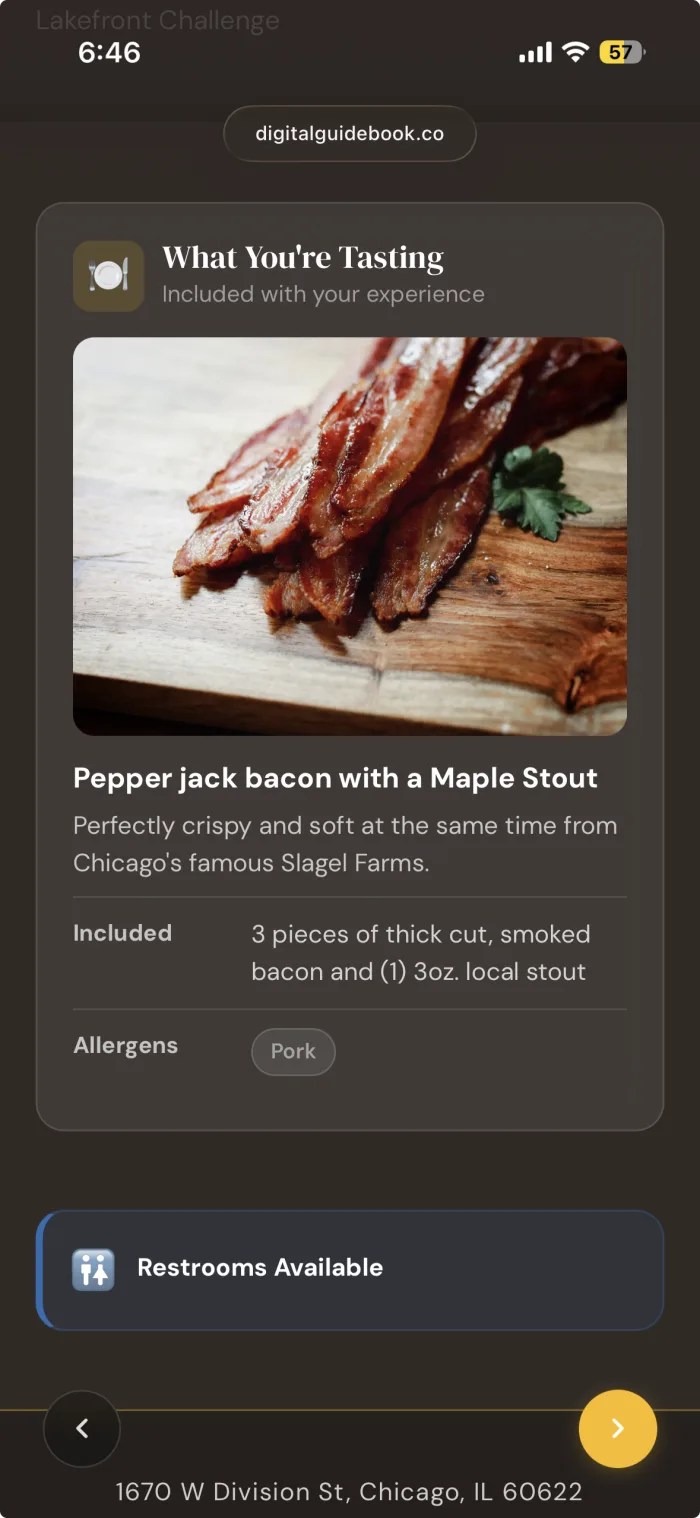
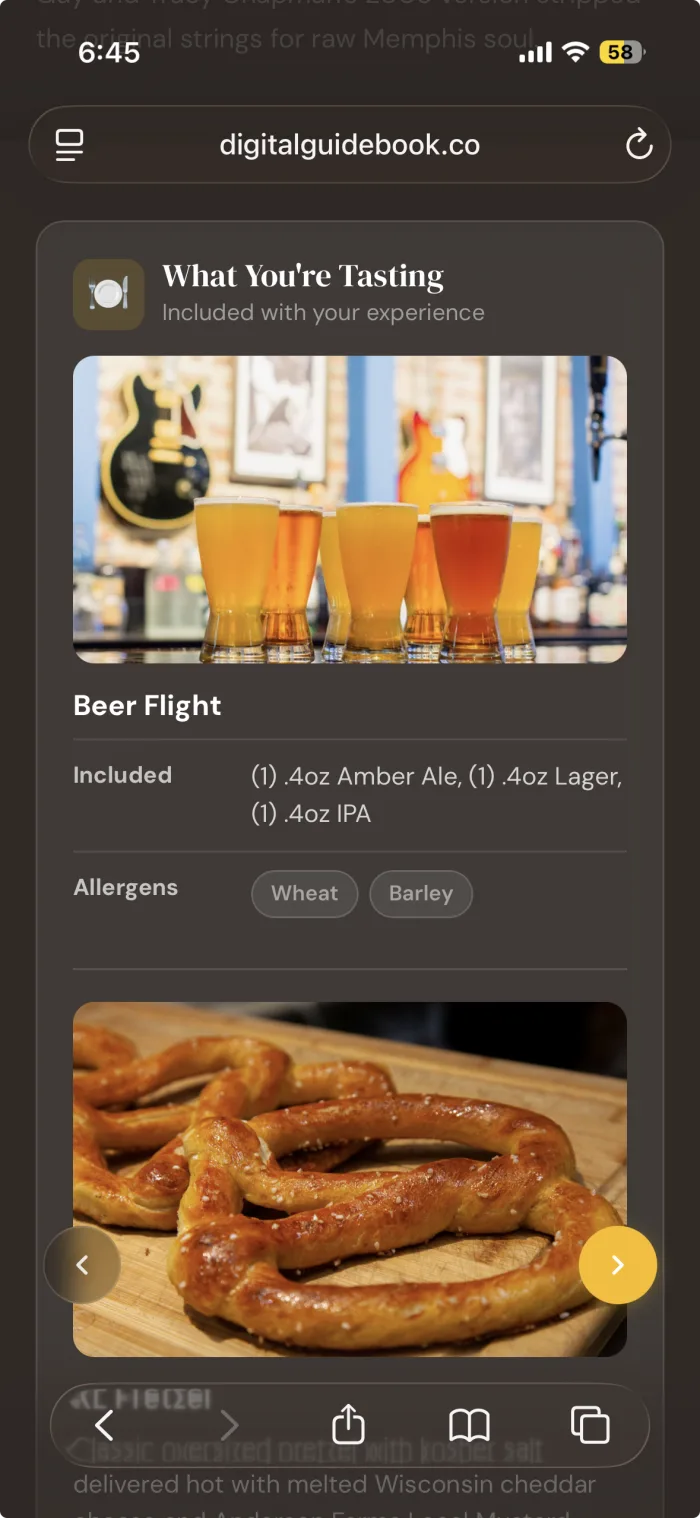
And a stop is no longer limited to a single tasting. This one is Chris's, at Bienville Bites: he wanted a single stop to be able to show everything a guest tastes there, not just one headline item. So if a venue serves two or three things, each one renders on the stop with its own photo and details, stacked in the order you choose. A wine bar can pour a flight. A bakery can plate a trio.
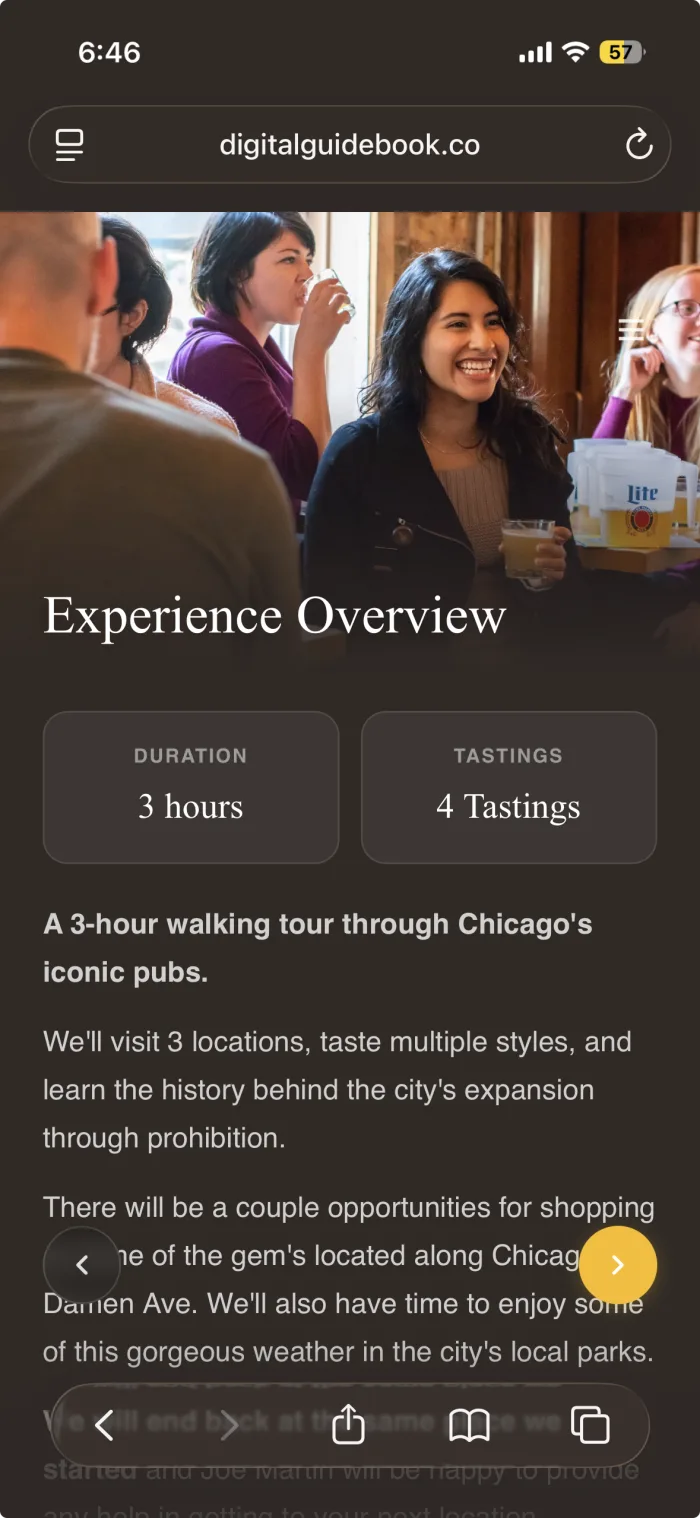
Because the guidebook now knows the real tastings on the route, the tour overview counts them honestly. The headline that used to read "5 Stops" reads "5 Tastings" when there are five tastings across the tour, adding up stops that serve more than one and skipping stops that serve none. It is a small line of text, but it is the first number a guest reads, and now it is true.
One Venue, A Library of Tastings
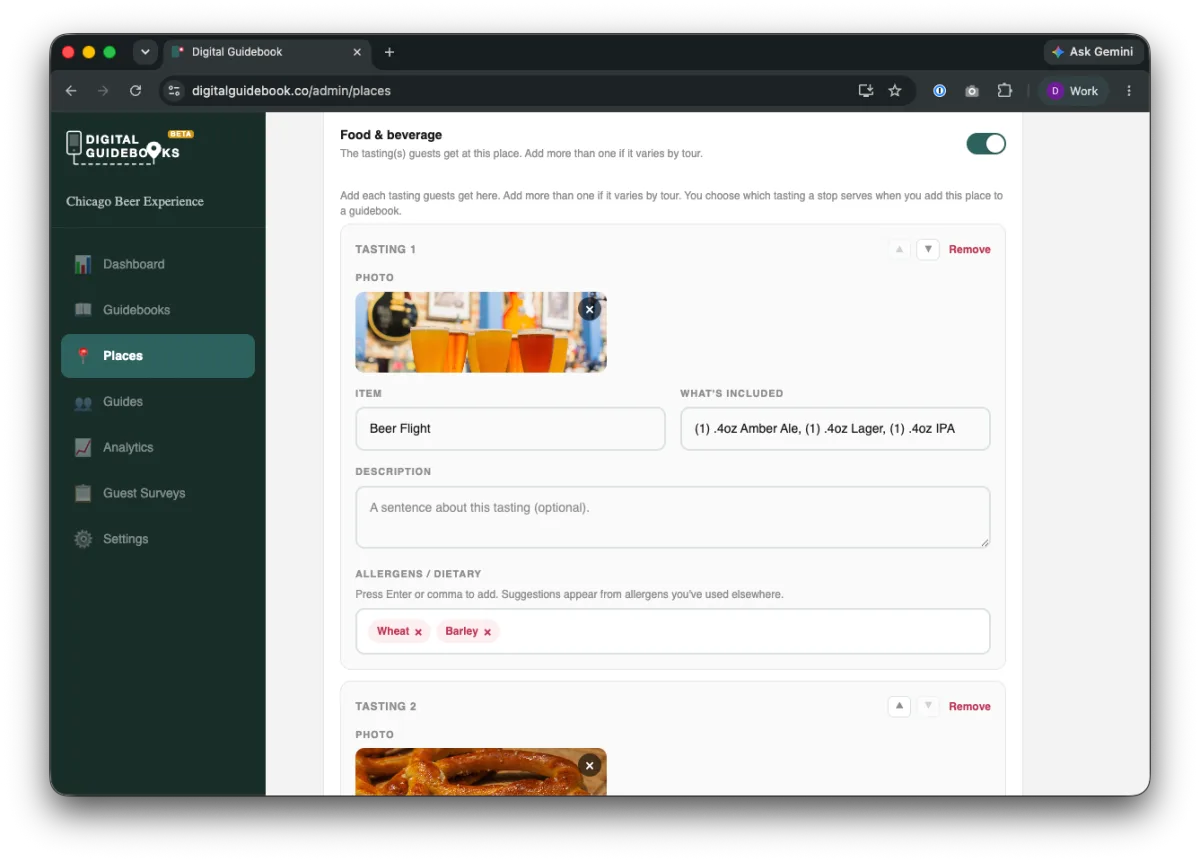
Behind that guest experience is the change operators will feel every time they build a tour. Open a place, turn on Food & beverage, and instead of a single food item you now have a tasting list. Add as many tastings as the venue serves across all of your tours. Each one carries a photo, an item name, what is included, a short description, and allergens, with the same chip-style allergen entry and suggestions you already know.
Then, when you add that place to a tour and open the stop, you pick which tasting or tastings apply. Tap to select, tap again to remove, and the guest page updates to match. A newly added stop starts with nothing selected, because there is no guarantee a given stop serves food, so you are always making a deliberate choice rather than cleaning up a default.
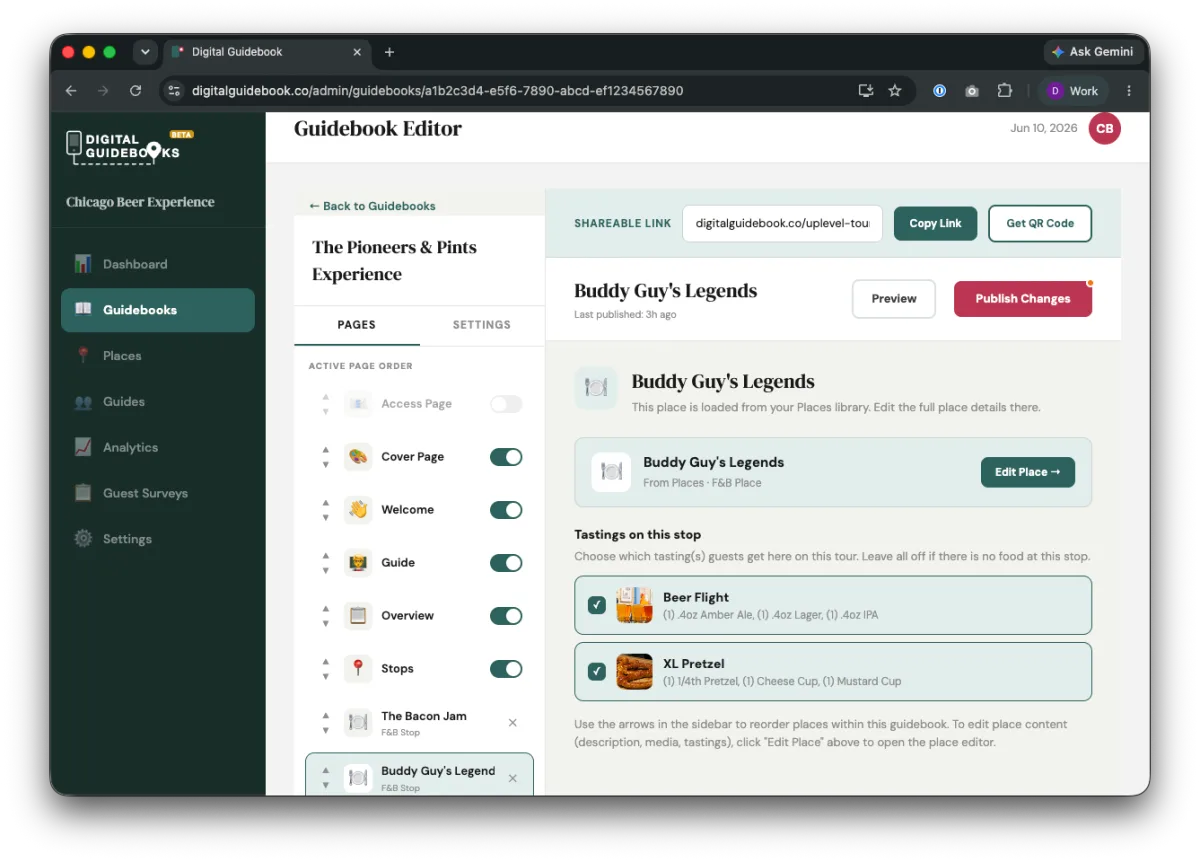
The best part is what this removes. The same venue on three tours is now one place with three tastings in its library, and each tour points at the right one. Editing the venue's address or photos once updates it everywhere, while each tour keeps its own tasting. And none of this asked anything of you to switch over: every food item you had already entered moved into its venue's tasting library automatically, and each stop stayed pointed at exactly what it was showing before. Your live guidebooks did not change for a single guest.
Reusing a Brand Across Locations
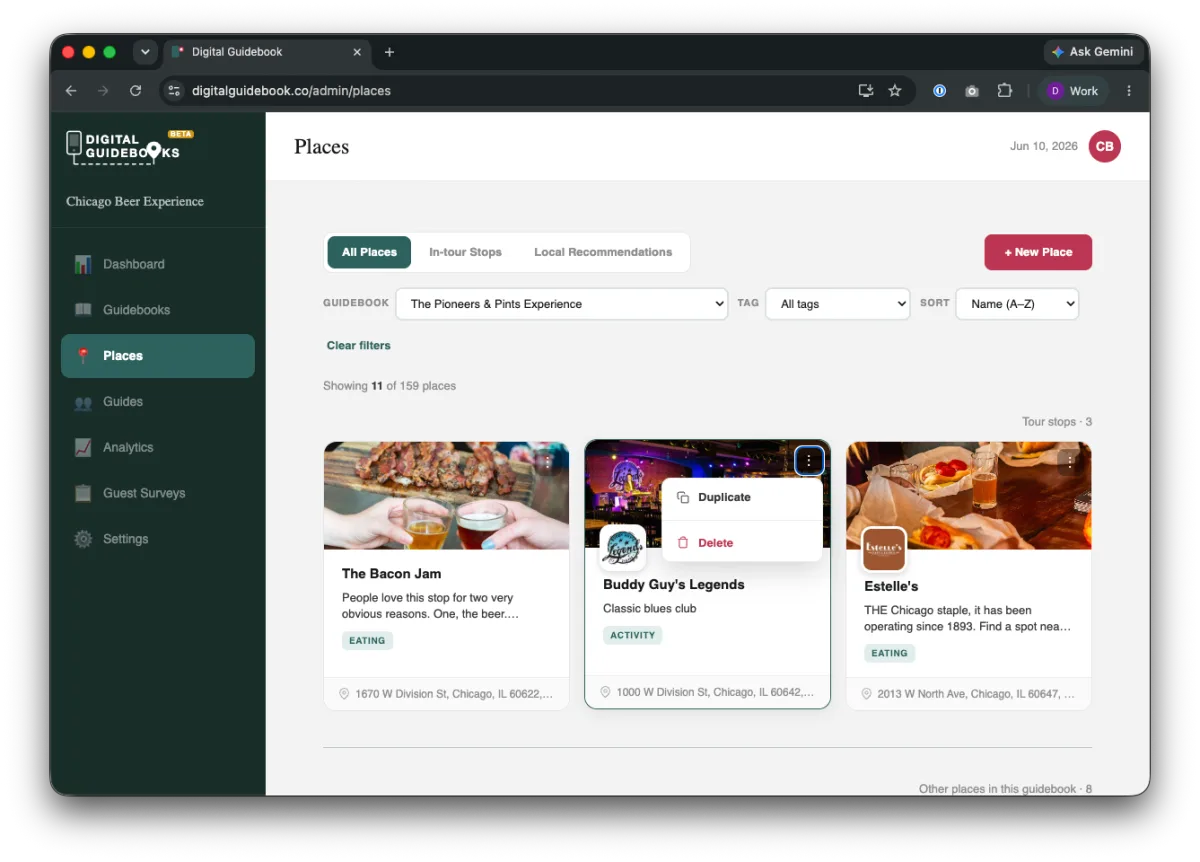
Different tastings at one address is one problem. The same brand at different addresses is another, and this one is Shannon's, at Walk Eat Nashville. She runs the same restaurant at three locations, each with its own address and tasting, and wanted to reuse the brand instead of rebuilding it from scratch three times. So every place card now has a three-dots menu with a Duplicate action. It copies the venue's name, photos, links, and details into a fresh place, leaving only the address and the tasting to change.
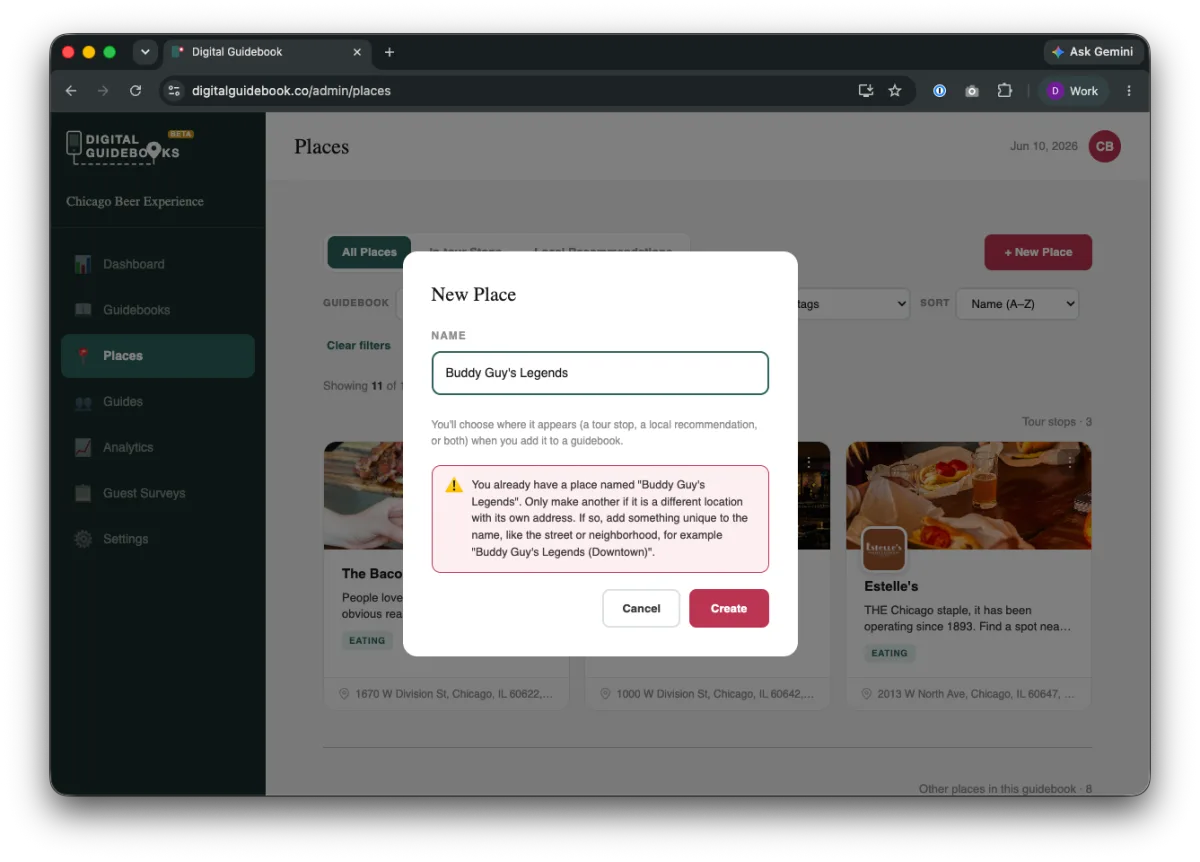
And if you start to create a brand-new place with a name you already use, the dialog now reminds you that you only want to do that for a genuinely different location, and suggests adding something unique to the name, like the street or the neighborhood. It is a small guardrail that keeps a library of real venues from quietly filling up with accidental twins.
Smaller Wins in This Release
A run of smaller fixes landed alongside the tasting work, several of them straight from operators who hit them this week:
- Add Stop works every time. Adding certain places to a guidebook could silently do nothing when the place had food settings turned on. That is fixed, and the button now tells you if anything ever does go wrong instead of failing quietly. Thank you to Chris at Bienville Bites and Shannon at Walk Eat Nashville for flagging it.
- Optional sections start off, and stay off. New places used to open with the offer and coupon section already switched on. Now every optional section starts off until you add something, and a section you turn off stays off when you come back to it.
- No more crossed photos. A display glitch could briefly show a photo you just uploaded on the next place you opened. It never saved to the wrong place, but it was alarming. The editor now loads each place cleanly.
- A tidier place library. Duplicate and delete now live together in a single three-dots menu on each place card, matching how the guidebooks screen already works.
Frequently Asked Questions
What changed in the Tastings release?
A venue now keeps a small library of tastings, and you choose which one or more a stop serves when you add it to a guidebook. Guests see exactly the tasting or tastings for the tour they are on, each with its own photo, and the tour overview counts the real number of tastings across the route. The same venue can serve a different tasting on a different tour without you keeping duplicate copies of the place.
Do I have to re-enter my food details?
No. Every food item you had already entered moved into that venue's tasting library automatically, and each stop stayed pointed at exactly the tasting it was showing before. Your guidebooks look the same to guests today as they did yesterday. Nothing to redo.
Can one stop show more than one tasting?
Yes. A stop can feature one tasting, several, or none. Each selected tasting renders on the guest stop page with its own photo, what is included, and allergens, and the tour overview adds them all up for an accurate tasting count.
We serve a different dish at the same venue on different tours. How does that work now?
Add both dishes to that venue's tasting library once, then pick the right one for each tour when you place the stop. The venue is entered a single time and each tour shows its own tasting. You no longer need a separate copy of the venue per tour.
What about the same brand at different physical locations?
Use Duplicate from the three-dots menu on a place card. It copies the venue's name, photos, and details into a new place so you only have to change the address and the tasting. If you start typing a name that already exists, the new place dialog reminds you to add something unique like the street or neighborhood.
Why was the offer toggle on by default before?
It was a small default-state bug. New places now open with every optional section, including the offer and coupon section, switched off until you add something. Sections you turn off also stay off when you come back.