

JoeNotes The 20-second version
- Guests join your list on a page of its own, near the end of the tour, with their email already filled in.
- Connect Mailchimp, Flodesk, Klaviyo, ActiveCampaign, or GoHighLevel and opt-ins land in your own list.
- Guest Emails shows who opted in and who only opened a guidebook, and the export keeps them apart.
- Delete a guest's data from their row, with a preview before you confirm.
- Point guests at your privacy policy instead of ours, because they are giving their details to you.
- Photo swiping works properly again on stop pages, thanks to a guest report through Mike at American Ghost Walks.
Every guidebook has quietly been collecting email addresses. A guest types one in to open their guidebook, and it lands in your account. Useful, and completely reasonable, but it raises a question worth answering honestly: does typing an email to open a guidebook mean that guest wants to hear from you?
It does not. Those are two different things, and this release separates them.
Joining Is Now a Choice, Not a Side Effect
There is a new page near the end of your guidebook called Join the List. It is off by default, and you turn it on per guidebook from the Pages tab, where you can also write your own heading and invitation.
The timing is deliberate. A guest reaches it after the tour, once they know whether they liked you. If they gave an email at the start to open the guidebook, it is already filled in, so joining is one tap. That tap is the consent, and we record when it happened.
The quieter benefit is the one that compounds. You build your mailing list with people who actually want to be on it. A smaller list of guests who chose you is worth more than a bigger one padded with people who only wanted to open a guidebook. They open your emails, they do not mark you as spam, and your sender reputation stays intact. Every email you send after that lands better because of who is not on the list.
The access page got simpler in the same move. It used to carry consent checkboxes. Those are gone, because the access page is not where you ask someone to join a mailing list. It collects an email to open a guidebook and says so plainly.
Your List, In Your Own Email Tool or CRM
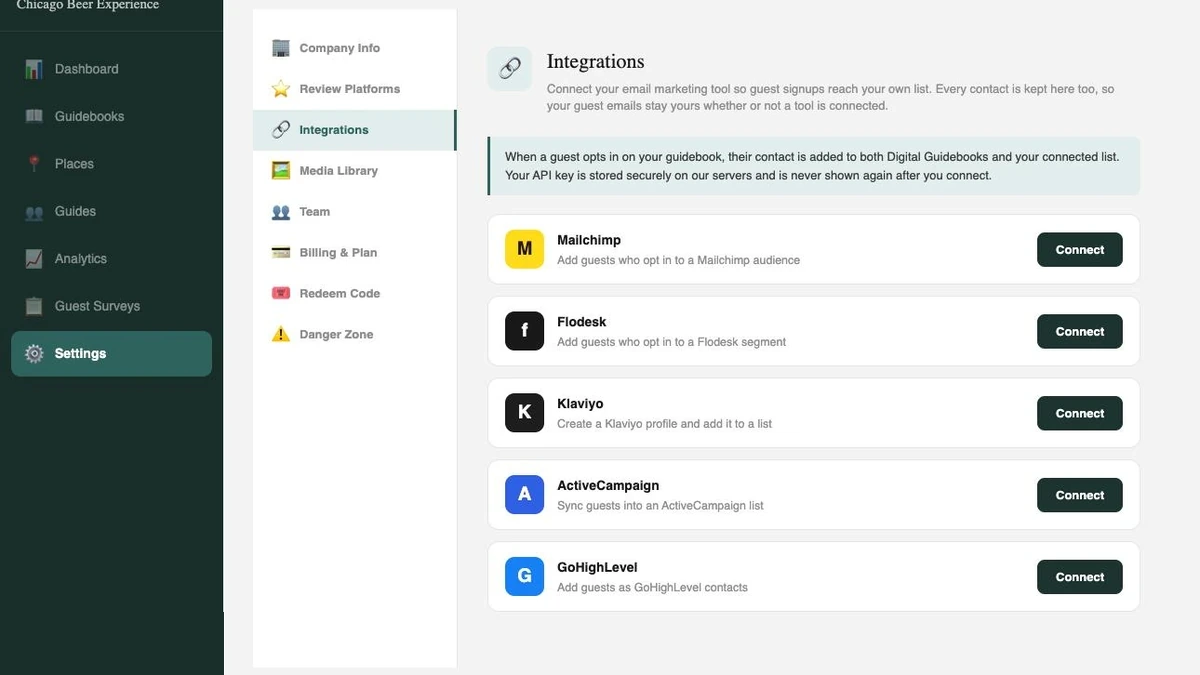
An email address sitting in someone else's software is not much of a mailing list. So opt-ins can now flow into the email tool or CRM you already use. Connect Mailchimp, Flodesk, Klaviyo, ActiveCampaign, or GoHighLevel under Settings, then Integrations, using an API key from that tool.
Each one is a card with a Connect button that opens just the fields that tool needs. Send a test contact first and watch it appear in your list before a single guest touches it. If a sync ever fails, you see it, in plain language, along with the reason.
One thing worth being explicit about: the contact is saved in Digital Guidebooks first, and pushed to your tool second. If your connection breaks, or you never connect anything at all, no email is lost. You can export to CSV whenever you like. Nothing about your guest list depends on a sync succeeding.
Constant Contact is the one people ask about that is not here. It requires a different kind of sign-in than the others, which is a separate piece of work rather than another key to paste. It is on the list.
Knowing Who Actually Opted In
Guest Emails now has an Opted In column, and a filter for opted in, did not opt in, or everyone. The CSV export carries the same information, including the date consent was given.
This matters more than a column usually does. Before, exporting your guest emails and uploading them to a mailing tool would have swept up every guest who only wanted to read their guidebook. Now you can filter to the people who chose to hear from you and export only those.
When a Guest Asks You to Delete Their Data
You can now do it yourself, in seconds. Find the guest in Guest Emails and use the delete action on their row. You get a preview of exactly what will be removed before anything happens, and confirming clears their contact record, survey answers, and email history across your account.
Your Privacy Policy, Not Ours
Here is something we had backwards, and it is worth saying so directly.
When a guest hands over an email inside your guidebook, they are giving it to you. It is your guest, your list, and your decision about what to send. We are the software you use to do that. Until this release, the privacy notice at the bottom of that form linked to our policy, which described the wrong company, and it said "our" in a place where any guest would read that as yours.
Add your privacy policy URL under Settings and your guests will see yours. If you do not have one, guests see ours along with a line explaining that you collect the details and we handle them on your behalf, which is at least accurate.
We also removed our terms of service from guest pages entirely. Those terms cover your use of this platform. A guest on your tour is not part of that agreement, so asking them to accept it never meant anything. If you have your own terms, you can add those and guests will see them.
Fixes That Came From Operators
Three of the fixes in this release exist because operators told us something was wrong, and one of them came from guests on a live tour.
Photos on stop pages swipe properly again. Guests trying to look through a stop's photos were being thrown to the next page instead. Mike at American Ghost Walks heard this from his own guests and passed it along. It is the kind of thing that never shows up in a support ticket, because a guest does not report it, they just conclude the app is awkward and stop swiping. Full-screen photo viewing and pinch to zoom were affected by the same underlying problem, and both work correctly now.
Text fields behave like text fields. The same root cause made it hard to move the cursor inside the email box on the join, survey, and refer pages. Dragging to place your cursor turned the page instead. Fixed everywhere at once.
A hidden second description no longer haunts your places. Shannon Largen at Walk Eat Nashville worked this one out from the guest side and described it precisely: clearing a place's description did not remove the text guests saw, it revealed a different one underneath. Leftover text from the original import was hiding behind the description you could actually edit. Gone now, and the editor no longer makes your edits look like they reverted.
FAQs can be reordered and deleted. Also from Shannon. You can move FAQs with arrows, and the order you set is the order guests see, which was not reliably true before. You can delete an FAQ from your library, with a warning telling you how many guidebooks it appears in. And the wording now makes clear that you choose which FAQs appear in each guidebook, while the text itself is shared.
Tip handles copy correctly in in-app browsers. Discovered through live testing by Bites of Boston. When a guest opened a guidebook inside Instagram or an email app, tapping to copy a guide's tip handle could silently fail while still saying "Copied". Their real-world use surfaced the edge case, and now the confirmation only appears on an actual copy.
That is four operators shaping one release. We would rather hear it early and awkwardly than not at all, so if something in your guidebook feels wrong, tell us.
Smaller Things In This Release
- Stops without photos look intentional. A stop with no images used to show a map pin over a faded name, which read like a broken image. Now the content simply starts at the top.
- Swiping between photos is smooth. The next photo is loaded before you reach it, so the carousel no longer stalls and flashes the previous image.
- Unusable image files are caught at upload. A photo saved as a .jpg that is really a TIFF or HEIC, which browsers cannot display, used to upload and then appear blank to guests. It is now rejected with an explanation instead.
- Small photos get a warning. Upload an image under 800 pixels wide and you are told it will look soft on a phone, with the actual size. It still uploads. It is your call.
- Turn off the Digital Guidebooks badge. Plans that include removing our branding now have a switch for it under Settings.
- Billing dates stay accurate. A change on Stripe's side was quietly stopping some subscription updates from saving.
Frequently Asked Questions
What changed in the Consent release?
Guests now join your email list on a dedicated page near the end of the guidebook, where joining is a deliberate tap rather than a side effect of opening the guidebook. You can connect Mailchimp, Flodesk, Klaviyo, ActiveCampaign, or GoHighLevel so those contacts land in your own list automatically. Guest Emails shows who opted in and who did not, you can delete a guest's data on request, and your guidebook can point guests at your own privacy policy instead of ours.
Do I need a CRM to use this?
No. Every guest who opts in is saved in Digital Guidebooks first, and the push to your email tool happens afterward. If you have no tool connected, or the connection breaks, nothing is lost. You can export your guest emails to CSV at any time, filtered to just the people who opted in.
Which email and CRM tools can I connect?
Mailchimp, Flodesk, Klaviyo, ActiveCampaign, and GoHighLevel. You connect one at a time using an API key from that tool, and you can send a test contact to confirm it works before any guest uses it. Constant Contact is not supported yet because it requires a different kind of sign-in that we have not built.
Does an email collected on the access page count as opting in?
No, and that distinction is the point of this release. An email typed on the access page is how a guest opens their guidebook. It is not permission to market to them. Only the join page records marketing consent, and Guest Emails shows the two apart so you can export just the people who chose to hear from you.
Can I use my own privacy policy in my guidebook?
Yes. Add your privacy policy URL under Settings and your guests will see yours. Guests are giving their email to you, not to us, so your policy is the right one to show them. If you leave it blank, guests see the Digital Guidebooks policy along with a line explaining that we handle the data on your behalf.
What happens if a guest asks me to delete their data?
Open Guest Emails, find the guest, and use the delete action on their row. You get a preview of exactly what will be removed before you confirm, and the deletion covers their contact record, survey answers, and email history across your account.